


Cleaner: Junk Cleanup
3.719.00 Reviews
App Specs
- Version
- 1.0.0
- Updated On
- License
- Free
- Downloads
- 100,000+
- Developer
- HANFU GIRL
- Categories
- Tools
- Platform
- Android
Screenshots
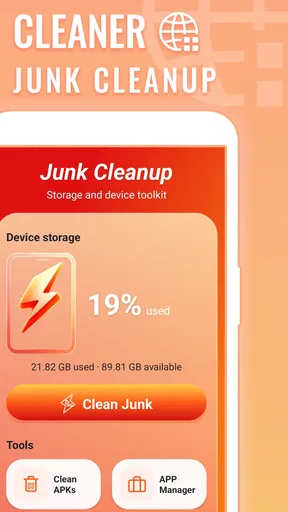
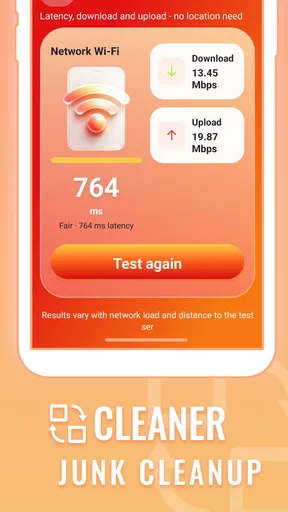
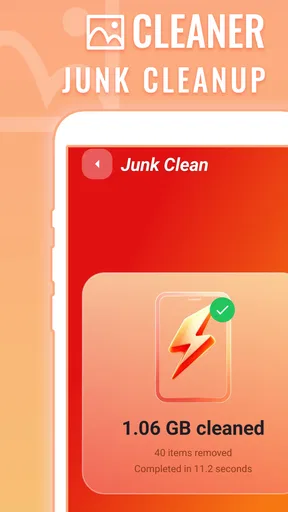
 Analysis by AppCompare
When a phone starts warning that storage is nearly full, the hard part is often working out what is safe to remove. Cleaner: Junk Cleanup is a free Android tools app from HANFU GIRL built around the simple idea of clearing unwanted files. I’d consider it for someone who wants a straightforward cleanup aid, but I wouldn’t treat any cleaner as a substitute for checking what is taking up space or deciding what matters.
Start with the problem, not the cleanup button
I find cleanup apps most useful when they help me answer a specific question: is there low-value material I can remove without disrupting anything I need? They are less useful when the goal is simply to make every storage figure look smaller. Before opening this one, it helps to identify what prompted you to act: an alert, trouble saving a file, or a general sense that the phone has become crowded. That context makes it easier to judge whether a cleanup result actually solves the problem.
A practical example is preparing for a trip when you want room for offline maps or new photos. Rather than deleting broadly, I’d first decide what needs space, then use a scan as one possible way to find removable clutter. If the storage screen still shows that a few large videos or apps are the real issue, addressing those directly is likely to be more useful than repeating a general cleanup.
A simple promise, with a useful role
The app’s purpose is easy to understand: help tidy storage by finding junk files. That focus can be useful when a device feels cluttered and you want a starting point rather than a detailed maintenance routine. Cleaner: Junk Cleanup is currently at version 1.0.0, and its short name, Cleaner, makes its role plain even before you open it.
In my view, the best way to approach a cleanup tool is as a helper, not an authority. A file that looks disposable to a scanning process may still be useful to you, while a large item you genuinely want to keep may be the bigger storage issue. I’d review any cleanup suggestions carefully and make a separate habit of checking important photos, downloads, and documents in the phone’s own file or gallery apps.
Readability and navigation: keep the task in view
A tool with a narrow job has one potential advantage: it can make the main task easier to grasp than a broad device-management app with many unrelated controls. If you are opening Cleaner: Junk Cleanup because a storage warning interrupted your day, the clearest experience is one that makes the cleanup action and its consequences easy to understand. I would look for plain labels and a clear distinction between scanning and deleting before proceeding.
That distinction matters especially for people who are new to storage management. A scan is an inspection; deletion is a decision. I recommend treating those as separate steps, pausing to read what the app identifies, and avoiding a one-tap cleanup if you are unsure what will go. This is good practice with any cleaner, and it is more important than chasing a headline number for reclaimed space.
Worth Reading Before You Choose

EA SPORTS FC Mobile 26 Is a Bigger Football Game, but It Takes Time

Flipboard Shows What News Apps Must Do Beyond the Feed

Switching to Android Auto Means Rethinking Your Driving Routine

Google Calendar Makes a Crowded Week Easier to Manage

Ludo King Makes the Most of the Minutes Between Plans

Baby Panda World Brings Quick Play to Modern Phones, but Its Game Library Feels Busy
The app is rated for Everyone, which makes its intended audience broad, but an age rating alone does not tell me how comfortable the interface will feel for every person. Someone who prefers larger text, high contrast, screen magnification, or spoken feedback should test the app on their own device before relying on it. Android’s system accessibility settings may help with some interface needs, but they cannot make unclear wording or a confusing confirmation flow clear.
Motor and sensory considerations: avoid rushed taps
Cleanup is not usually a task that needs speed. If you have limited dexterity, tremor, or difficulty targeting small controls, I’d avoid making deletion decisions while distracted or using the app in a moving vehicle. Take the phone somewhere steady, use any system-level touch adjustments you already rely on, and allow time to confirm each choice. A slower review is a sensible trade-off when the action may remove files you intended to keep.
For sensory access, the important questions are practical: can you distinguish the main controls, understand the wording without relying only on color, and follow the task with your preferred text or speech settings? I can’t assume that every Android accessibility feature will work perfectly inside a particular app, so I’d test the actions you actually need before making this part of a regular routine. If visual clutter or small text makes the process tiring, the phone’s built-in storage settings may be a calmer alternative.
One useful workflow is to use the cleaner only when you have a specific reason, rather than repeatedly opening it to chase a perfectly empty storage meter. For example, after a low-space alert, inspect the app’s findings, remove only items you recognize as unnecessary, then check the phone’s storage screen to see whether the change helped. This creates a pause between recommendation and action and makes it easier to notice when the real space issue is a large personal file rather than junk.
Situational access: when a quick cleanup helps
Imagine you are about to record a family event and your phone reports that storage is tight. A cleanup tool can be a useful first stop if it helps you locate files that are genuinely disposable. I’d still leave enough time to check the camera’s available space afterward; a cleaner cannot replace that final check, and deleting hastily just before an important moment is an avoidable risk.
The same approach suits someone who shares a phone with family or uses it for both work and personal tasks. Before cleaning, consider whether another person may depend on files stored locally. If the device contains shared downloads, work documents, or items saved for offline use, it is worth confirming ownership rather than assuming that unfamiliar names mean the files are expendable. This small habit can prevent the most frustrating kind of cleanup mistake.
For someone juggling a busy day, the benefit of a dedicated tool is less about doing everything instantly and more about having a defined place to begin. I’d use it at home or during a quiet break, not while walking into a meeting or trying to capture something in the moment. If a scan does not reveal an obvious, low-risk choice, stopping and returning later is a reasonable outcome; there is no need to force a deletion just because the app is open.
Cleaner: Junk Cleanup is free, has passed 100 thousand installs, and has an average rating of 3.7 from 387 ratings. Those figures suggest that people have tried it, but they don’t tell me whether its cleanup choices will fit your phone or habits. I’d use the rating as a reason to keep expectations measured, not as a verdict on whether a particular scan will be helpful.
On Android, the built-in storage tools are the most obvious alternative. They are often the better first choice if you want to see what categories or apps occupy space without adding another utility. A dedicated cleaner is more appealing when you prefer a focused cleanup workflow, but the built-in option may be easier to trust because it is already part of the device experience. If your main problem is a few oversized videos or downloads, reviewing those directly can also be more precise than running a broad cleanup.
Manual review is the other useful comparison. It takes more attention, but it gives you direct control over individual files and can make sense when you already know which folder or download is causing trouble. A cleaner may be more approachable if you do not know where to start; it is not automatically more accurate for your personal priorities. I’d choose the method that lets you understand the consequences, rather than the one that promises the quickest-looking result.
Remaining barriers: convenience does not remove the need to judge
The central limitation of a junk cleaner is that “unwanted” is personal. Temporary files may be safe to remove in one situation and inconvenient to rebuild in another. I would not assume that clearing every suggested item improves the phone in a meaningful way, and I would avoid treating a clean-looking result as proof that the device will stay fast or have no storage problems.
There is also a trade-off between simplicity and explanation. A focused tool may feel less demanding than sorting through folders manually, but it still needs to communicate what its choices mean. If the app’s labels leave you uncertain, stop and use Android’s storage settings or a file manager to inspect the relevant items. That is not a failure to use the cleaner; it is a sensible boundary for a tool whose job involves removal.
For people who need dependable access through assistive technology, the practical test is whether the entire route works: opening the app, understanding a scan result, selecting or reviewing items, and backing out safely. Don’t test that for the first time when storage is critically low. Try it when you have time and nothing urgent depends on the phone, and keep a familiar alternative available if any step proves difficult.
The app is marked for Everyone and is free, which lowers the barrier to trying it, but neither fact guarantees that it is the right fit for every device or user. It requires Android 10 or later. If you use an older version of Android, this particular option is not suitable; if your current system tools already give you a clear view of storage, adding a separate cleaner may offer little benefit.
Another sensible question is whether a cleanup app should become part of a daily routine. I would not make that the default. Run it when there is a concrete storage concern, then check whether the change addressed that concern. Repeatedly cleaning without a clear need can turn a small maintenance task into needless work, especially if you have to re-download or recreate items that mattered to you.
Who I’d recommend it to
I’d suggest giving Cleaner: Junk Cleanup a cautious try if you use a supported Android phone, want a dedicated place to begin a cleanup, and are comfortable reviewing results before deleting anything. It may be especially convenient for someone who does not know where to start when a storage warning appears. I would not recommend relying on it blindly, using it as a fix for every performance issue, or choosing it over built-in tools if those already make storage easy to understand.
For a more inclusive routine, make the task predictable: choose a quiet moment, use your usual display or input settings, inspect rather than rush, and verify available space afterward. If the app’s text, controls, or spoken interaction do not work comfortably for you, switch to the phone’s storage settings or ask someone you trust to help review files. A cleanup tool should reduce effort, not make access harder.
I’d also suggest skipping it if you need exact, file-by-file control and are not comfortable acting on a broad cleanup suggestion. The same goes for anyone whose storage problem comes from a particular app, a large media collection, or files they must preserve for work or travel. In those situations, the system storage view or a deliberate manual sort can answer the question more directly. The app’s focused approach is an advantage only when that is the kind of help you want.
A measured verdict on Cleaner: Junk Cleanup
My overall view is that Cleaner: Junk Cleanup is best treated as a focused convenience for people who want help starting a storage tidy-up, not as an automatic maintenance solution. Its appeal is the clear, limited purpose; its main caution is the need to understand what is being removed. The rating and install count offer context, while the app’s real value will depend on whether its flow is readable and manageable on your own phone.
If you decide to try it, begin with a low-stakes cleanup and keep control of the final decision. If you want a broader view of storage, need stronger confidence about each file, or find the interface difficult to use, Android’s built-in storage tools or a manual review are better choices. For someone who wants a simple place to start and is willing to check before acting, this free utility may earn a place in the toolkit.
Pros
- Quickly identifies common junk files and temporary data for cleanup.
- Simple interface makes basic phone maintenance easy to understand.
- Can help free storage when a device is running low on space.
- Cleanup suggestions let users review items before removing them.
- Useful for occasional storage checks without navigating system settings.
Cons
- Some files may be mislabeled
- so review selections before deleting anything.
- Cleaning junk does not necessarily improve device speed or battery life.
- Frequent ads or upgrade prompts may interrupt use
- depending on the version.
- Deep-cleaning features may require a paid subscription or in-app purchase.
- Results can be limited by Android or iOS restrictions on app data access.
FAQs for Cleaner: Junk Cleanup
What does Cleaner: Junk Cleanup do?
Cleaner: Junk Cleanup is designed to help you review and remove files that may be taking up unnecessary storage, such as temporary data, cached items, or duplicate and unwanted files. The exact tools can vary by app version and device. Before deleting anything, check the app’s scan results carefully: files that look unneeded may still be important to you or used by another app.
Is Cleaner: Junk Cleanup safe to use, and could it delete important files?
Any cleanup app can affect files if you approve a deletion, so it is sensible to inspect the items it identifies rather than tapping a one-step cleanup button without reviewing the list. Avoid removing unfamiliar documents, downloads, or media unless you have a backup. Also check the app’s permissions and privacy information before granting access to storage, photos, or other personal data.
Is Cleaner: Junk Cleanup free, or does it require a subscription?
Pricing and available features may depend on the version, platform, region, and current offer. Some cleaner apps provide basic scans for free but place extra tools behind in-app purchases, a subscription, or advertising. Check the app-store listing and the purchase screen before starting a trial or confirming payment. If you do begin a trial, note its renewal date and cancellation terms.
Will Cleaner: Junk Cleanup make my phone faster or improve battery life?
Removing files can free storage, which may help when a device is nearly full, but it does not guarantee faster performance or longer battery life. Phone speed and battery use can be affected by many factors, including background apps, system updates, battery condition, and available memory. Treat performance claims cautiously, and compare your device’s behavior before and after cleanup rather than expecting a dramatic change.
What permissions does Cleaner: Junk Cleanup need, and is it available for Android and iOS?
The permissions required depend on the app’s features and the operating system. A cleanup tool may request access to storage or photos so it can identify items for review, while iOS and Android can impose different limits on what third-party apps may scan or remove. Confirm that the app is available for your device in its official store, and grant only permissions you understand and consider necessary.


